Vishwas Sharma Tutorial 11 min read
How to Convert Gameplay Clips to Vertical Videos with a Clean Blurred Background
Gameplay is recorded in 16:9 but TikTok, Shorts, and Reels want 9:16. Here's how to convert gameplay clips to vertical videos without losing your HUD, minimap, or subtitles using a blurred background instead of a crop.
Introduction
You’ve got a clip worth posting. Maybe it’s a clutch round, a funny reaction, or just a satisfying moment your friends would appreciate. So you drop it into your editor, hit export, and upload it to TikTok, Shorts, or Reels — and it looks off. Small. Letterboxed. Or worse, cropped so tight that half your HUD is gone and the play doesn’t even make sense anymore.
That’s because almost all gameplay is recorded in 16:9 — consoles, capture cards, OBS, streaming software, all of it defaults to widescreen. But short-form platforms are built around 9:16. That mismatch is the whole problem, and it’s why so many gaming clips look like an afterthought instead of something made for the platform they’re on.
The fix isn’t a tighter crop. It’s a clean blurred background that keeps your full clip intact while filling out the vertical frame around it. This guide walks through how to convert gameplay clips to vertical videos the right way, without cutting off the parts that actually matter. If you’re still deciding between formats, our breakdown of the best aspect ratio for Shorts, TikTok, and Reels covers why 9:16 dominates short-form platforms.
Why Gameplay Doesn’t Fit Vertical Videos
Almost every recording source you use — console capture, a capture card, OBS, Shadowplay, whatever — outputs in 16:9 by default. That’s fine for YouTube or Twitch, but it’s the wrong shape for TikTok, Shorts, and Reels, which are all built around a 9:16 vertical frame.
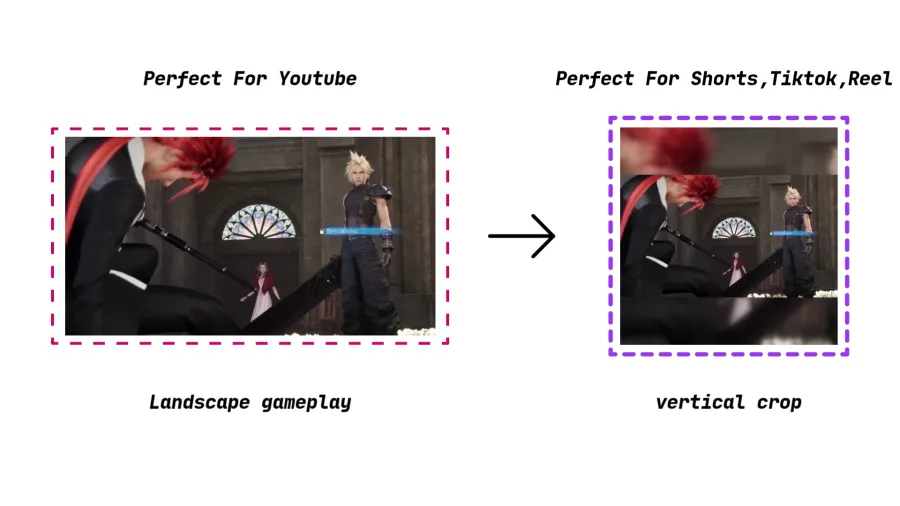
The obvious fix looks like cropping the sides off to fit. The problem is that gameplay isn’t just the center of the screen. Your HUD, minimap, ammo counter, kill feed, inventory, subtitles — a lot of that lives near the edges. Crop too aggressively and you lose the exact information viewers need to follow what’s happening. A 16:9 to 9:16 gameplay conversion needs more care than a simple crop because you’re not just resizing a video, you’re potentially cutting out context.
A vertical crop might look like a quick fix, but horizontal footage loses a lot of important detail when you chop the sides off — we cover exactly why that happens in our guide to converting horizontal video to vertical without cropping important content.
The Common Methods (and Why They Fall Short)
There are three ways creators usually try to turn gameplay into vertical gaming videos. Each one has a reason people reach for it, but only one actually holds up across most gameplay clips.
Cropping
Cropping is the fast option — it fills the vertical frame immediately with no extra layers or setup. The tradeoff is real, though: a tight 9:16 crop can cut off HUD information, minimaps, player names, subtitles, and any action happening near the sides of the screen. It works fine if the moment is dead center and nothing important sits at the edges, but that’s a narrow use case for most games.
Stretching
Stretching forces your 16:9 clip to fill a 9:16 frame without cropping anything. It’s rarely a good idea because it visibly distorts the image — circles turn into ovals, players look squeezed, and UI text gets harder to read. Most gaming creators avoid this entirely once they notice how unnatural it looks on a phone screen.
Using a Blurred Background
A blurred background keeps your entire gameplay clip visible and fills the empty space around it with a softened, blurred version of the same footage. Nothing gets cut off, nothing gets distorted — the frame just gets extended in a way that still feels intentional. For most gameplay clips, this is the cleanest default, especially when the whole frame matters to understanding the moment.
| Method | Pros | Cons | Recommended? |
|---|---|---|---|
| Cropping | Fast, fills the vertical frame instantly | Cuts off HUD, minimap, and edge action | Only when action is centered |
| Stretching | Fills the entire frame with no empty space | Distorts gameplay and UI text | No |
| Blurred background | Preserves the full frame and looks polished | Needs a reasonable blur amount and good spacing | Yes, for most gameplay |
Why a Blurred Background Works So Well
A blurred background works because it doesn’t ask you to sacrifice anything. The viewer still sees your entire original clip — HUD, minimap, subtitles, all of it — while the blurred edges keep the vertical canvas from feeling empty or boxed in with black bars.
- Preserves the full gameplay frame, including HUD, minimap, subtitles, and edge action.
- Gives 16:9 footage a proper vertical layout without an aggressive crop.
- Fills empty space with motion and color that actually match the clip, instead of plain black bars.
- Keeps viewer attention on the main gameplay while making the surrounding frame feel deliberate.
- Matches a style already used by a lot of gaming creators, streamers, and highlight channels — so it reads as normal, not homemade.
That’s the result: full gameplay visible, vertical canvas filled, nothing cropped. We go deeper into why 9:16 is the standard for Shorts, TikTok, and Reels in a separate breakdown if you want the full picture.
How to Convert Gameplay into Vertical Videos
Here’s the actual workflow, step by step.
Import your gameplay
Start by adding your clip, or a whole folder of clips, into your editor. This works the same whether the source is an OBS recording, a console capture, a stream highlight, or a clip you pulled out of a longer VOD.
Select 9:16
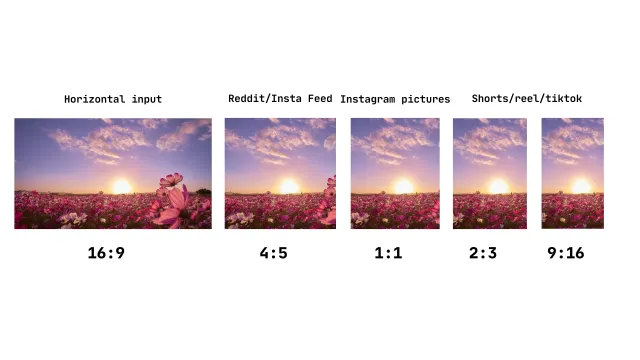
9:16 is the standard vertical format for gameplay shorts and gaming clips on TikTok, YouTube Shorts, and Instagram Reels. You’ll occasionally want 4:5 or 1:1 for specific feed posts, but 9:16 should be your default for anything short-form. Not sure which ratio fits your content? We tested and compared every major short-form aspect ratio to see which one performs best on each platform.
Enable blurred background
With this on, your original 16:9 gameplay stays fully visible in the foreground, and a blurred version of the same footage fills the rest of the vertical frame. The clip immediately feels built for vertical instead of forced into it, and you don’t lose any of the original view.
Adjust blur intensity
Blur intensity controls how much detail survives in the background layer. You want enough blur that the background clearly reads as secondary to your foreground gameplay, but not so much that it turns into a flat, muddy smear. A few seconds of preview usually tells you if you’ve gone too far either way.
Position gameplay
Size and position the centered gameplay so the important action stays readable on a phone screen. Before you export, double check that your HUD elements, minimap, subtitles, and any facecam overlay are all still visible and not getting clipped by the frame edges.
Add subtitles (optional)
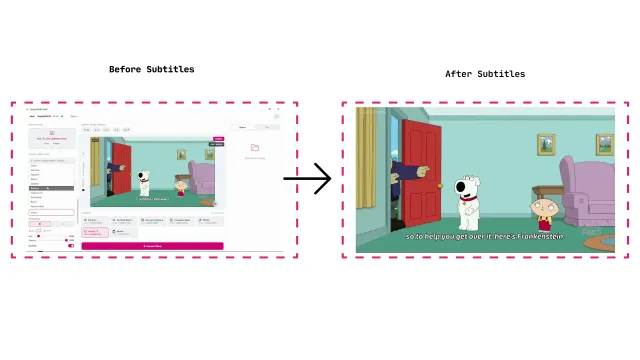
Subtitles help a lot with funny reactions, commentary, voice chat moments, tutorials, or any clip likely to get watched on mute — which, on short-form platforms, is most of them. Keep subtitles inside the platform’s safe zones so they don’t get covered by app UI like captions, usernames, or engagement buttons.
Export
Match your export to the target platform’s vertical resolution — usually 1080x1920 for 9:16. Before you upload anywhere, throw the finished file on your phone and actually watch it there. Things that look fine on a monitor don’t always hold up on a 6-inch screen.
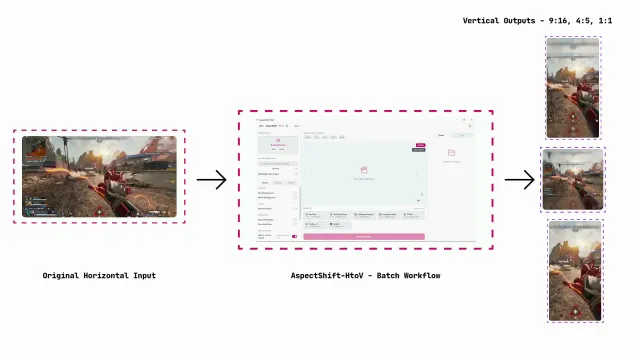
This is the exact workflow AspectShift-HtoV is built around — a focused Windows app for turning horizontal gameplay into vertical output with blur background, presets, subtitles, and batch processing, so you’re not rebuilding this setup by hand every time.
Tips for the Best Results
- Recording resolution: Start with high-resolution 16:9 footage so your foreground gameplay stays sharp after resizing.
- Bitrate: Higher bitrate source footage holds up better through export, especially in fast-moving games.
- Blur amount: Use enough blur to clearly separate the background from your main clip, without turning it into a distracting smear.
- Subtitle placement: Keep subtitles readable and clear of HUD elements, facecam overlays, and platform UI.
- Safe zones: Leave room near the bottom, right side, and top of the frame for app controls and captions.
- Export resolution: Stick to 1080x1920 for most gameplay shorts unless your platform or workflow calls for something else.
- Frame rate: Match your source frame rate where you can, especially for fast games where motion clarity matters.
Best Games for This Style
Blurred background gameplay works best when the full 16:9 frame actually holds useful information — which, in practice, is most games.
Minecraft
Minecraft clips often benefit from keeping the full frame, since movement, inventory moments, building context, and reactions can spread across the whole view. The blurred background style makes even slower-paced clips feel more polished in a vertical feed.
Valorant
Valorant clips need the HUD, minimap, crosshair area, and kill feed to stay visible. Crop too tightly and you lose the exact information viewers rely on to understand the play.
Counter-Strike 2
CS2 highlights depend on crosshair placement, radar, utility, and scoreboard context. A blurred background layout preserves that tactical detail instead of trimming it away for the sake of a tighter frame.
Fortnite
Fortnite clips often involve fast camera movement, building, and inventory info spread across the whole screen. A centered 16:9 foreground helps a lot when the key moment isn’t perfectly centered in frame.
Call of Duty
CoD clips move fast — kill streaks, HUD prompts, score notifications all stacking up quickly. Check readability carefully after resizing, since the action can get busy once it’s shrunk down to a phone screen.
Apex Legends
Apex clips rely on squad status, abilities, ammo, and damage numbers spread across the full frame. Edge cropping tends to remove exactly the details that make the clip make sense.
GTA V
GTA V clips — driving, stunts, roleplay scenes — often have UI details spread across the landscape frame. A blurred background keeps the scene context intact while adapting the clip for TikTok, Shorts, and Reels.
Elden Ring
Elden Ring clips lean on boss positioning, health bars, player spacing, and overall composition. Keeping the full frame intact helps the clip hold onto its cinematic feel even in a vertical layout.
Examples Before and After Applying Blur
Here’s a single clip shown side by side: the original 16:9 gameplay on the left, and the same clip converted to a blurred background on the right. Watch how the HUD, minimap, and subtitles stay intact in the blurred version — none of that survives a straight crop.
Frequently Asked Questions
Does blur reduce video quality?
No, not on its own. The blurred background doesn’t touch the quality of your foreground gameplay. Your export settings, source bitrate, and how many times the file has been re-encoded matter a lot more for perceived quality than the blur layer does.
Should I crop or blur gameplay clips?
Cropping can work if all the important action is dead center in frame. For most games though, blur is the safer choice, since HUD elements and action often sit closer to the edges than you’d think — and that’s exactly what a crop removes.
What blur intensity works best for gameplay?
It depends on the game, how much motion is in the clip, the color palette, and how large your foreground gameplay appears. There’s no universal number — preview a few seconds before you commit to an export.
Does TikTok prefer vertical videos?
TikTok is built around vertical viewing, and 9:16 video generally feels the most native in the feed compared to letterboxed or cropped landscape footage.
Can I upload 16:9 gameplay?
Most platforms will accept it, but it usually shows up smaller or letterboxed in a vertical feed. A proper 9:16 export using blurred background gameplay fills the phone screen the way the platform expects.
What resolution should I export?
1080x1920 is the standard 9:16 resolution for most vertical gaming videos. Match your platform’s requirements and avoid upscaling a low-resolution source — it won’t look better, just softer.
Is a blurred background good for YouTube Shorts?
Yes. It preserves your full gameplay frame while still filling a vertical canvas properly, which is exactly what Shorts is built for. If you want to know how Shorts handles aspect ratios compared to TikTok and Reels, we broke that down in our short-form aspect ratio comparison.
Can I batch convert multiple gameplay clips?
Yes, and it’s especially useful if you’re a streamer repurposing several highlights from one session at once instead of exporting each clip by hand. AspectShift-HtoV supports batch processing for exactly this.
Conclusion
Most gameplay is recorded in 16:9, but short-form platforms reward vertical presentation — and that mismatch is the whole reason so many gaming clips look unfinished once they hit TikTok, Shorts, or Reels. A blurred background gives you a way to convert gameplay clips to vertical videos without cutting off your HUD, minimap, or subtitles, and without distorting the footage to force it into a new shape.
Play around with blur amount, foreground sizing, subtitles, and safe zones until you land on a setup that fits your style — then reuse it. Once you’ve got that combination dialed in, exporting vertical gameplay stops being a chore and just becomes part of the workflow.
If you want a faster way to do all of this, AspectShift-HtoV handles vertical presets, blurred backgrounds, subtitles, and batch exports in one Windows app, so you’re not rebuilding the setup from scratch every time you have a clip to post.