Vishwas Sharma Product 12 min read
AspectShift-HtoV Update v0.1.3: More Control, Better Previews, Smoother Exports
AspectShift-HtoV v0.1.3 adds a detachable preview window, multi-image overlays, direct canvas editing, ten export quality levels, retuned platform presets, and more reliable batch rendering.
Introduction
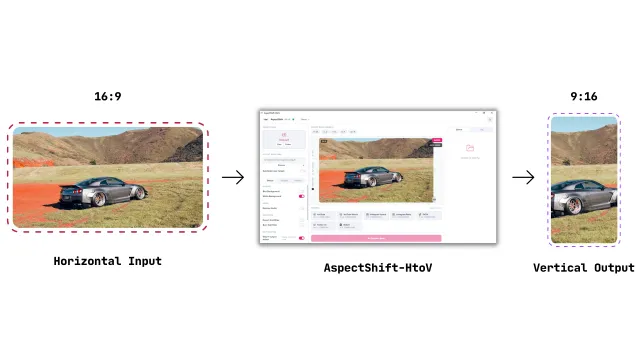
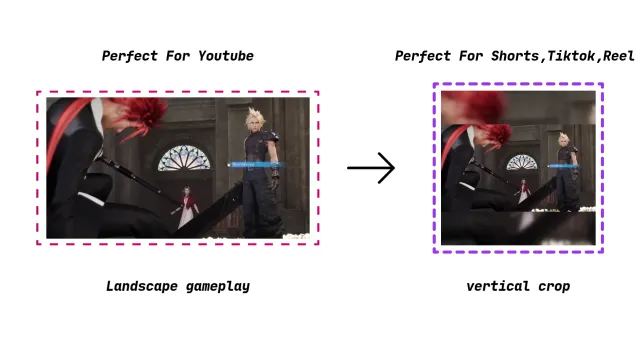
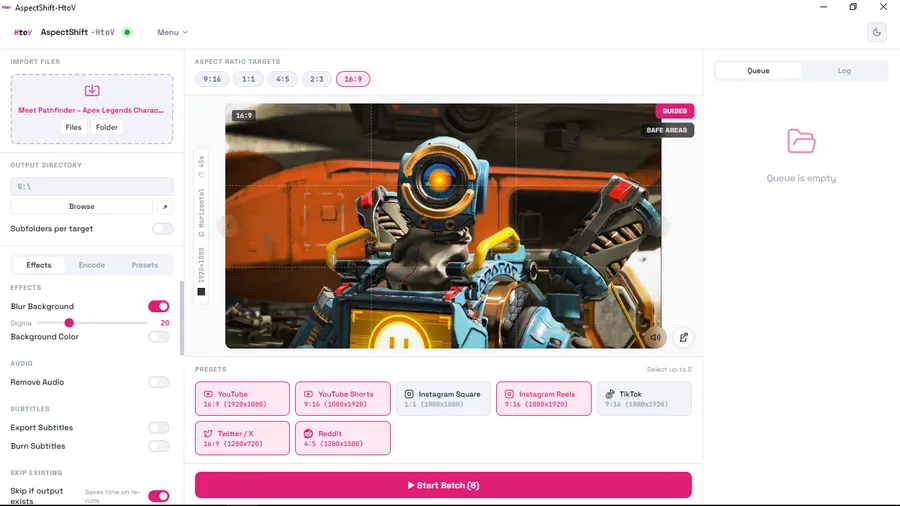
AspectShift-HtoV is a Windows desktop app for repurposing horizontal video into vertical and other platform-ready formats without opening a full editing suite. You import one clip or a folder, choose an aspect ratio or platform preset, add subtitles, text, images, or a background treatment, and export the results individually or as a batch. If you are new to the app, What Is AspectShift-HtoV? covers the core workflow and who it is for.
Version 0.1.3 was released on October 10, 2026. This update focuses on the parts of that workflow that are hardest to get right: seeing the composition clearly, layering multiple images, adjusting elements where they appear, and exporting with fewer surprises. The headline changes are a detachable preview window, multi-image overlays with animated GIF support, direct canvas editing, ten export quality levels, retuned platform presets, and reliability work across the batch queue.
The app is still built around video repurposing rather than full timeline editing. The goal of v0.1.3 is to make the existing workflow more flexible, more predictable, and more comfortable, especially when you are preparing several clips at once.
The short version:
- Open the preview in a separate, resizable window and apply changes only when you are ready.
- Build compositions with up to 128 image overlays, including animated GIFs.
- Resize, rotate, duplicate, and nudge text and images directly on the canvas.
- Choose from ten export quality levels with clearer speed and audio options.
- Use retuned presets for YouTube, YouTube Shorts, Instagram Square, Instagram Reels, TikTok, X, and Reddit.
- Benefit from more reliable batch rendering, cleaner subtitle-file handling, and closer preview-to-export accuracy.
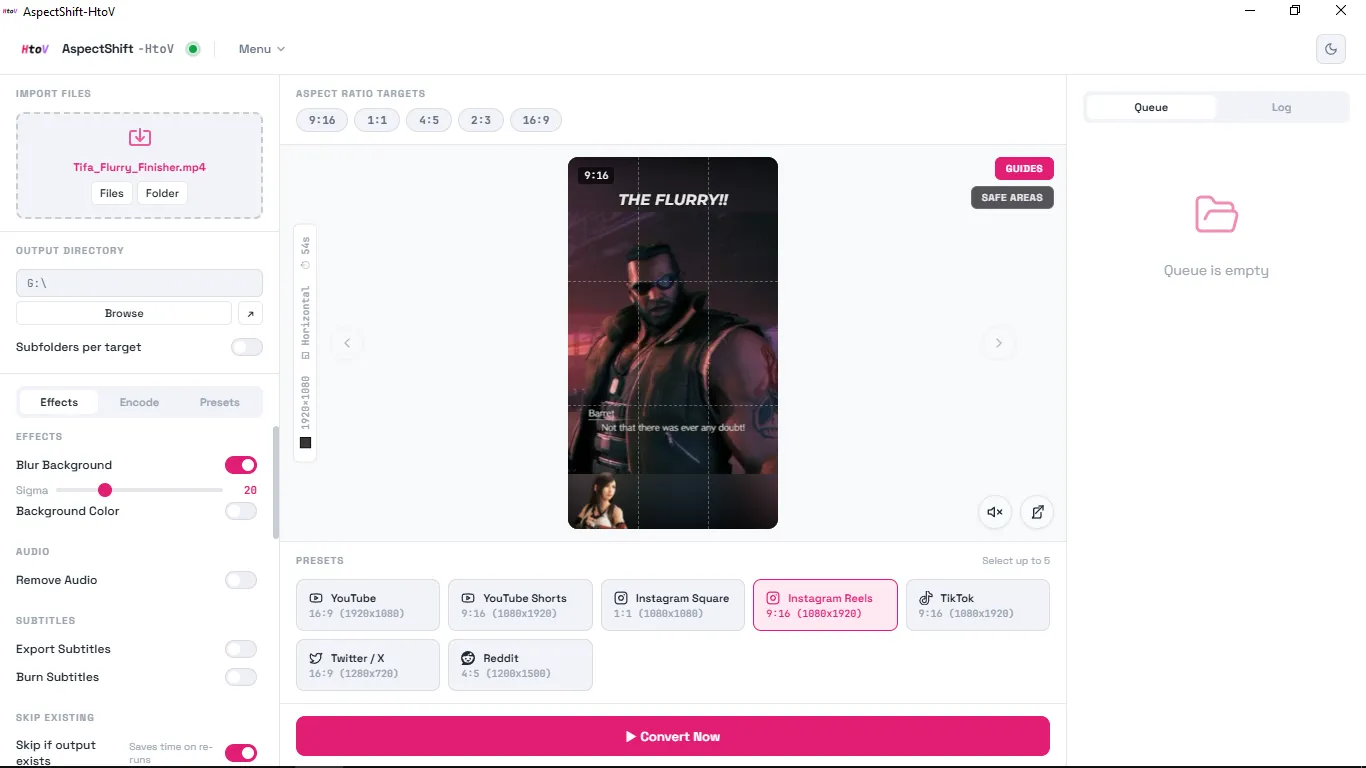
AspectShift-HtoV editor overview
A detachable preview with more room to work
The preview can now open in its own resizable window. It carries the same video, overlays, and tools as the main editor, so you can enlarge the picture while keeping the primary workspace available for settings and the queue.
That is useful when the main editor is busy or when the detail you need to check is small. A larger, separately arranged preview makes it easier to inspect video framing, confirm that text sits where you intended, check whether subtitles are readable, and see how image overlays interact with the subject. You can also test a composition without constantly resizing panels inside the main window.
The preview uses a draft-and-apply workflow. Changes you make in the detached window remain drafts until you select Apply. If you close the window without applying, those changes are discarded. That behavior is intentional: you can try a layout, compare it with the current composition, and back out by closing the window instead of undoing a series of edits.
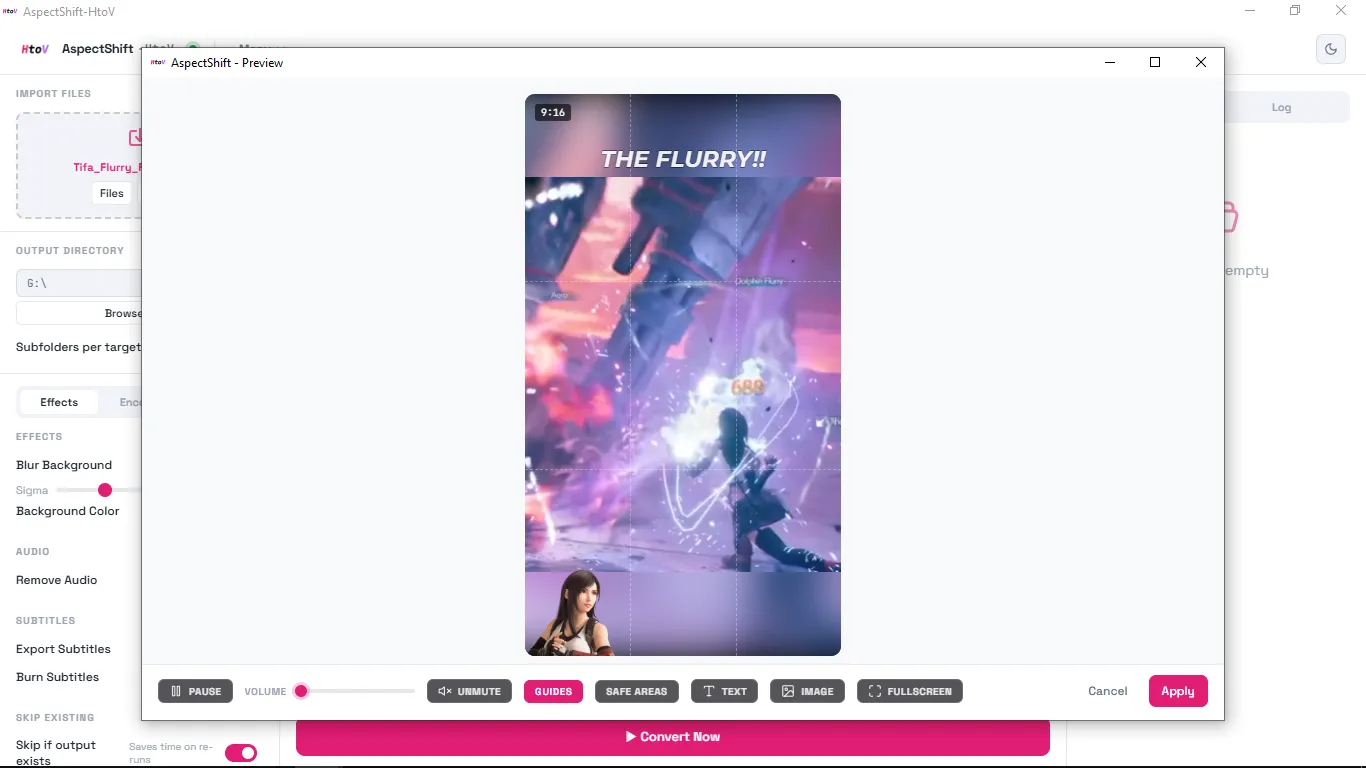
Detachable preview window open alongside the main editor
Multi-image overlays: more than one logo
Earlier versions supported a single logo overlay. Version 0.1.3 replaces that with a multi-image overlay system. You can add up to 128 images to a composition and manage them individually, which changes the kind of layout you can build without leaving the app.
Each image overlay can be resized with corner and edge handles, rotated with a round handle, flipped horizontally or vertically, cropped inside the image, adjusted for opacity, and positioned freely. Overlays can sit partly outside the frame; anything beyond the visible area is clipped in the output. Animated GIFs can be used as moving overlays.
That opens up several practical uses:
- Add a logo and a secondary brand mark in the same clip.
- Combine multiple branding elements instead of choosing one.
- Place stickers, decorative graphics, or callouts around the footage.
- Build sponsor or social-handle graphics for short-form videos.
- Create more distinctive social clips with layered visual elements.
The main benefit is straightforward: you are no longer limited to one image element when composing a video. For creators who add branding to every clip, that removes a recurring compromise between a clean layout and the elements they actually want to include.
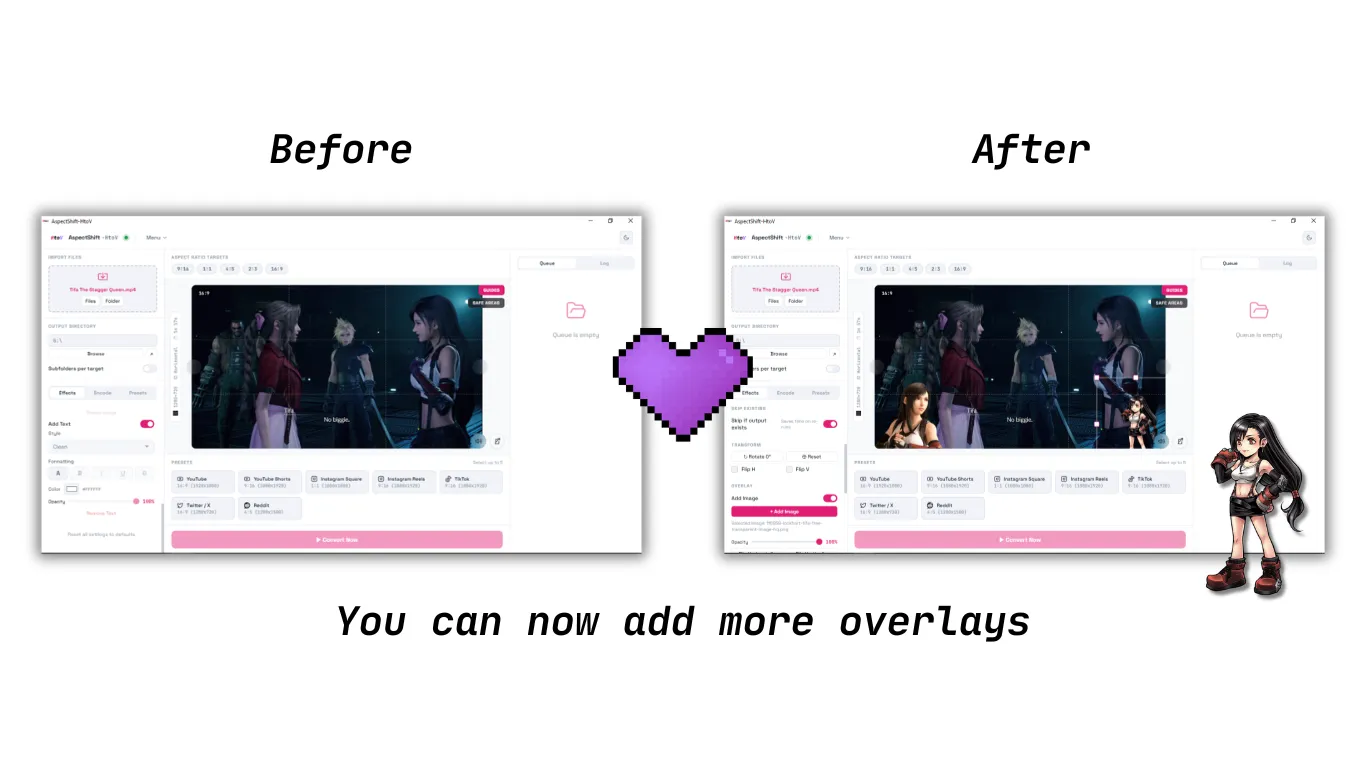
Before and after adding multiple image overlays
Direct canvas editing with less friction
Version 0.1.3 moves more editing controls onto the canvas. Text overlays can be resized directly to change their size, rotated freely, and dragged anywhere without snapping back to a previous position. Image overlays can be duplicated with an offset, nudged with the arrow keys, duplicated with Ctrl+D, and removed with Delete. Image controls stay available even when no image is selected.
The point is to reduce the back-and-forth between the preview and a settings panel. If a title needs to move a little to the left, you can nudge it. If a sticker should be duplicated and shifted, you can do that on the canvas. The canvas becomes the place where the composition is assembled, while the settings remain available when you need exact values.
This release also adds a background color picker for the empty bars around the video. Black remains the default, and previously saved settings still load, so existing projects do not need to be rebuilt around the new option.
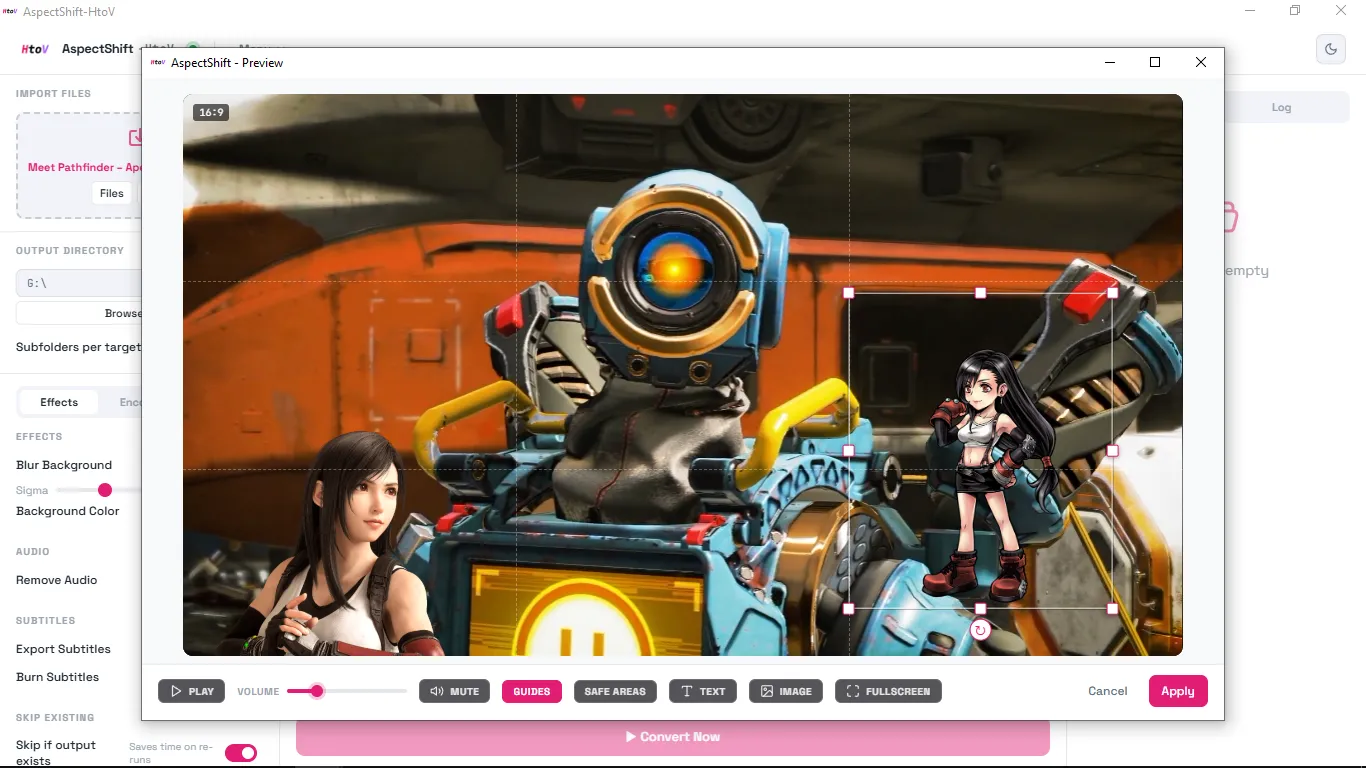
Editing overlays directly on the canvas
Export improvements: ten quality levels and clearer choices
Export settings directly affect the finished file, so v0.1.3 gives them more room. The biggest change is quality control: the app now offers ten export quality levels instead of three, ranging from highest quality to smallest file.
More levels mean finer trade-offs between visual quality and file size. They do not mean that every step produces a dramatic visual improvement, and the resulting file size still depends on the source footage, effects, and encoder settings.
The speed and audio-bitrate controls are clearer, and the export panel shows a live preview of the effective settings. That matters when a preset or override changes more than one value, because you can see what will actually be applied before you render.
The seven built-in platform presets have also been retuned:
- YouTube — 16:9
- YouTube Shorts — vertical
- Instagram Square — 1:1
- Instagram Reels — vertical
- TikTok — vertical
- X — landscape 720p
- Reddit — 4:5 portrait
The presets now use platform-sized canvases, stereo audio where expected, and quicker default encoding settings. Instagram Reels and X include upload-friendly frame-rate and bitrate ceilings that limit unusually high values without raising low frame rates. Reddit is now clearly labeled as 4:5 portrait. These presets are starting points rather than a guarantee that every upload will meet a platform’s requirements; checking the final file is still part of the workflow. If you are deciding which output ratio to use, the guide to the best aspect ratio for Shorts, TikTok, and Reels explains how the platforms differ.
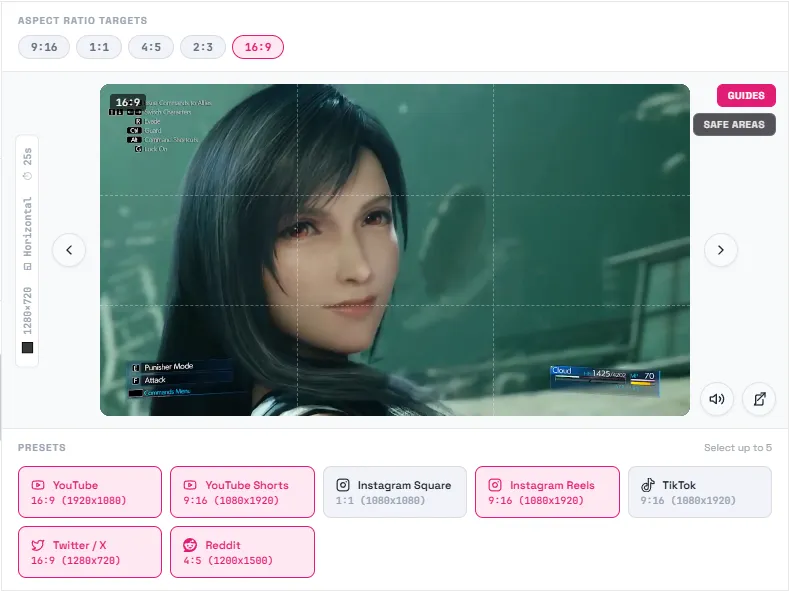
Export quality options and platform presets
Export validation is also more helpful. Combinations that do not apply, such as speed choices for WebM output or an audio bitrate when audio is removed, now show a warning and are handled safely. Invalid quality or override combinations are stopped before rendering with a clear message instead of failing partway through. Custom presets and app settings with clearly invalid values are rejected at save time, while previously saved files still open.
More reliable batch rendering
Batch rendering is less visible than a new overlay tool, but it matters when you are processing a folder of clips. Version 0.1.3 reworks the queue so it can work on more than one video at a time within safe system limits, checked fresh at each batch start. When system information is unclear, it falls back to processing one video at a time.
The queue also holds back new jobs when disk space runs low and retries once when a render fails only because system resources were exhausted. Clearing a batch and starting a new one no longer mixes progress or results from the previous run. Temporary subtitle files are cleaned up after rendering, and short jobs are no longer stuck behind very heavy ones. Export validation and error handling are more consistent throughout the process.
The practical result is a queue that behaves more predictably when you leave it running: fewer confusing statuses, safer handling of disk-space or resource pressure, and cleaner recovery when a job fails. This is an improvement in reliability, not a guarantee that every render will succeed; source files, settings, and system conditions can still produce failures.
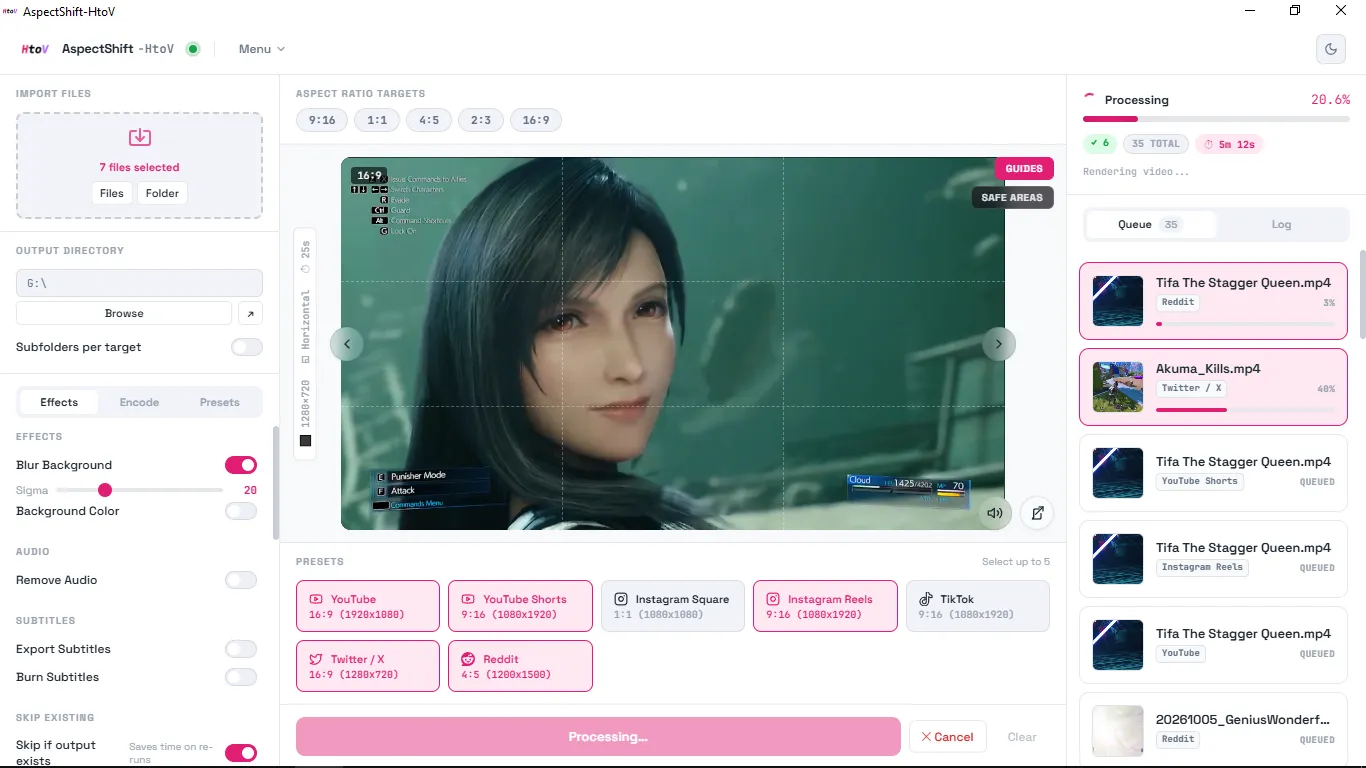
Batch-rendering queue in AspectShift-HtoV
Preview accuracy and quality-of-life fixes
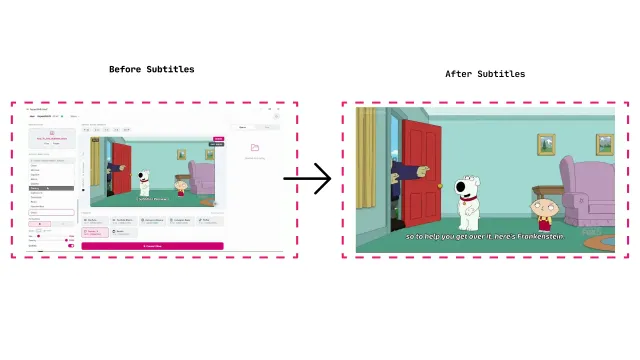
Version 0.1.3 also addresses the gap between what you see while editing and what the exported file looks like. Preview text size and overlay and subtitle positions now match the saved video more closely, including corrected text rendering and preview scaling. Text, images, and manually positioned subtitles can be placed anywhere, including partly outside the frame; anything beyond the frame is clipped in the output. If subtitles are a regular part of your workflow, the automatic subtitles guide covers generation, styling, and export.
Other fixes and small improvements include:
- Space plays or pauses in either preview view, and no longer repeats when held or steals typing while you are editing text.
- Esc leaves the full-screen preview and restores the previous window state.
- The pop-out preview has a single playback owner, so audio does not double. The first frame waits until the picture is ready, the volume slider opens only over the Volume control and stays open while dragging, the window follows the app theme, and the controls auto-hide with a bottom reveal zone.
- Windows color rendering is corrected so app colors no longer appear unusually warm or yellow.
- Fixed issues with exported text size, very large text shifting the video in the preview, duplicated text being pulled back toward the frame, the volume slider opening when hovering over Pop-Out, and preset quality labels that did not match the actual output quality.
The overall goal is consistency: the editing stage and the final export should tell the same story. “More closely” is the right expectation here. Preview and export are not claimed to be pixel-perfect in every possible situation.
Who benefits most from this update?
Different parts of v0.1.3 matter depending on how you use the app:
- Social media creators get updated platform presets and more control over output quality and aspect ratios.
- People adding branding can use multiple image overlays with flexible sizing, rotation, cropping, and positioning.
- Creators making text-heavy clips benefit from direct canvas editing and closer preview-to-export consistency.
- People processing multiple videos get a more predictable batch queue with better handling of disk-space and system-resource constraints.
- Users who prefer a flexible workspace can move the preview into its own resizable window and keep the main editor available.
If you mostly export one clip at a time with a single logo, the update is still useful, but the biggest gains will come from the overlay and preview changes. If you regularly process folders of clips, the batch work may be the most noticeable improvement.
How to get AspectShift-HtoV v0.1.3
AspectShift-HtoV v0.1.3 is available now for Windows. The complete release notes and installer are on the official v0.1.3 GitHub release page.
You can download the free Community Version from the download section of the AspectShift-HtoV website, or visit the AspectShift-HtoV homepage to compare the available editions. If you already use an earlier version, download the v0.1.3 release to update your installation.
What’s next?
Several items are listed as up next on the AspectShift-HtoV roadmap:
- GPU hardware acceleration for faster rendering.
- Subtitle burn-in and timing improvements.
- More subtitle customization options and presets.
- Improved stability for overlay positioning across video frames.
These are planned topics, not commitments or delivery dates. The focus of v0.1.3 is what is available today; the Product Updates page is the place to check for current status.
Frequently asked questions
What’s new in AspectShift-HtoV v0.1.3?
The update adds a detachable preview window, multi-image overlays with animated GIF support, direct canvas editing for text and images, a custom background color, ten export quality levels, retuned platform presets, and improvements to batch rendering, preview accuracy, and Windows color rendering.
Can I add multiple images to a video?
Yes. Version 0.1.3 supports up to 128 image overlays in a composition. Each overlay can be resized, rotated, flipped, cropped, adjusted for opacity, and positioned freely, including partly outside the frame.
Can I use animated GIFs as overlays?
Yes. Animated GIFs can be used as moving image overlays, and the same image controls apply to them.
What does the detachable preview window do?
It opens the preview in a separate, resizable window with the same video, overlays, and tools. Changes remain drafts until you select Apply, and closing the window discards any unapplied changes.
How many export-quality levels are available?
There are ten levels, ranging from highest quality to smallest file. The extra levels provide more granular control over the quality and file-size trade-off; they do not guarantee a specific file size or a visible improvement at every step.
Which social media platform presets are included?
The built-in presets are YouTube (16:9), YouTube Shorts (vertical), Instagram Square (1:1), Instagram Reels (vertical), TikTok (vertical), X (landscape 720p), and Reddit (4:5 portrait).
Does AspectShift-HtoV run on Mac or Linux?
AspectShift-HtoV currently runs on Windows. The website lists Mac and Linux support as a possible future update, not as a current feature.
Where can I download AspectShift-HtoV?
Download the latest release from the official GitHub release page or from the download section of the AspectShift-HtoV website.
Final thoughts
Version 0.1.3 is a workflow update rather than a change in direction. The detachable preview gives you more room to check a composition, multi-image overlays remove the single-logo limit, direct canvas editing cuts down on settings-panel trips, and the export changes make quality and platform choices easier to understand. The batch and preview-accuracy work is less visible, but it matters when you are processing several clips and want fewer interruptions.
If you try the update, keep an eye on the details that affect your own workflow: how an overlay sits on a phone-sized frame, whether your subtitle placement survives export, and how the new quality levels affect the files you actually upload. For feedback, bug reports, or feature suggestions, contact [email protected] or open an issue on the AspectShift-HtoV GitHub repository.