Updated Vishwas Sharma Tutorial 16 min read
How to Fix Video Orientation and Rotate Videos Correctly
Learn how to fix video orientation, rotate sideways and upside-down videos correctly, and avoid common mistakes like stretching, cropping, and broken exports.
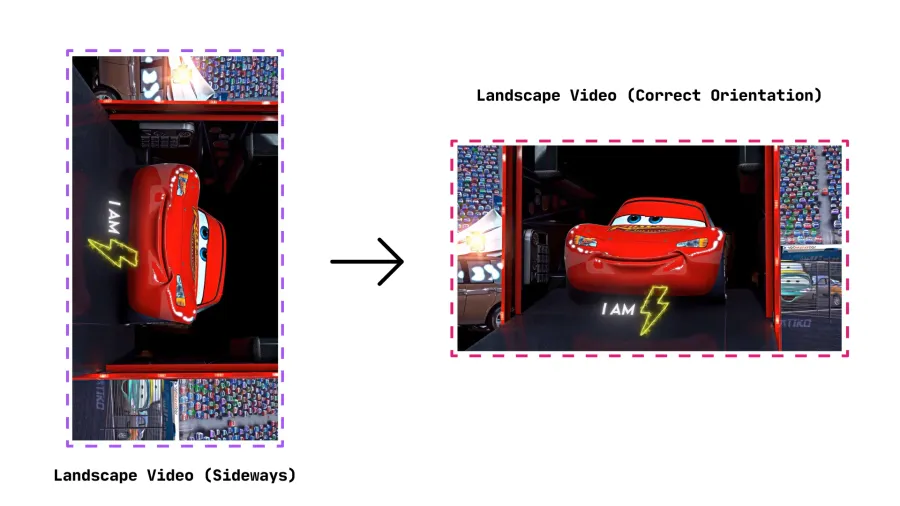
Introduction
Few video problems are more immediately annoying than opening a clip and seeing it play sideways.
Maybe you recorded a birthday video on your phone, moved it to your PC, and suddenly everyone is tilted on their side. Maybe a landscape clip looks vertical in one app and wrong in another. Or maybe you are trying to post footage to TikTok, Instagram Reels, or YouTube Shorts and the orientation just does not match the platform.
The confusing part is that the video itself may not be broken at all. Many phones and cameras save orientation as metadata — a hidden instruction that tells the player, “Display this video rotated.” Most modern gallery apps read that instruction correctly. Desktop players, older editing tools, social media uploaders, and file converters often ignore it or interpret it differently. That is why the exact same phone clip can look perfect in your gallery app and completely sideways on your computer.
This guide explains how to fix video orientation in plain terms. You will learn what portrait, landscape, sideways, and upside-down video actually mean, how to rotate portrait video into landscape and landscape video into portrait, the most common mistakes that make fixes go wrong, and the fastest workflow for getting a corrected export without turning a simple job into a full editing project.
What Is Video Orientation?
Video orientation is the direction a video is meant to be viewed. The four common states are:
- Portrait: The video is taller than it is wide. This is the native format for TikTok, Instagram Reels, YouTube Shorts, and most phone recordings.
- Landscape: The video is wider than it is tall. This is the standard format for YouTube, TVs, laptops, cameras, and gaming footage.
- Sideways: The video is rotated 90 degrees left or right, so people and objects appear turned on their side.
- Upside-down: The video is rotated 180 degrees, so the whole frame is flipped vertically.
Orientation is related to aspect ratio, but they are not the same thing. Orientation is about direction. Aspect ratio is about shape. A 16:9 video is usually landscape. A 9:16 video is usually portrait. If you want a deeper breakdown of platform shapes and which ratio to use where, read the guide to the best aspect ratio for YouTube Shorts, TikTok, and Instagram Reels.
Why Videos End Up in the Wrong Orientation
Wrong orientation usually comes from one of a handful of causes.
Phone Orientation Lock
If your phone’s orientation lock is enabled, the screen may stay upright while you are recording at an angle. The camera app still captures the clip, but the orientation metadata may not match what you expected — especially if you started recording before turning the phone fully sideways.
Orientation Metadata
Phones often record video in one physical direction and then add metadata telling players how to display it. Your gallery app reads that correctly. A desktop player, older editor, or upload tool might not. When that happens, the video appears sideways even though it looked fine on your phone.
Exporting Incorrectly
Sometimes the original file is fine, but the exported version is wrong. This can happen if you rotate the preview inside an editor but export with the original canvas settings, choose the wrong output dimensions, or accidentally apply rotation twice across two different tools.
Incompatible Apps
Not every app treats orientation metadata the same way. Messaging apps, cloud storage previews, browser players, and older editing tools can all interpret the same file differently. If a video plays correctly in one place but wrong somewhere else, inconsistent metadata handling is usually the reason.
Social Media Downloads
Videos downloaded from platforms are often re-encoded. During that process, the platform may bake in the rotation, strip metadata, crop the frame, or change the aspect ratio. That is why a downloaded TikTok or Reels clip can behave differently from the file you originally uploaded.
Quick Answer: How To Fix Video Orientation
If you just need the short version, here it is:
- Open the video in a tool that lets you rotate and export.
- Rotate 90 degrees left, 90 degrees right, or 180 degrees until the content appears upright.
- Choose the correct output shape: landscape for wide video, portrait for vertical.
- Preview the result before exporting.
- Export a new file and test it in the app or platform where you plan to use it.
The critical step is number 3. Rotating a video and changing its aspect ratio are two different actions. Mixing them up is the most common reason a fix produces a stretched, cropped, or black-barred result.
How To Rotate Portrait Videos Into Landscape
A portrait video is taller than it is wide. Rotating portrait video into landscape usually means one of two things: fixing a sideways clip that should have been landscape, or converting an upright vertical phone clip into a wider format for YouTube, a presentation, or a desktop screen.
Step 1: Check What Is Actually Wrong
Open the video and ask one simple question: does it only need to be turned, or does it also need a new shape?
If people are sideways, the video needs rotation. If people are upright but the video is too tall for where you want to post it, you are dealing with an aspect ratio conversion, not an orientation fix.
For example, a vertical phone clip of someone standing upright does not need rotation. It may need to be placed inside a landscape canvas with a background fill if you are uploading to a horizontal format.
Step 2: Rotate 90 Degrees Left or Right
If the portrait video is sideways, rotate it 90 degrees in whichever direction makes the subject upright. Do not stretch the video to fill the frame. Stretching changes the proportions and makes people look wider or thinner than they should.
Step 3: Choose a Landscape Output
For most landscape uses, 16:9 is the correct choice. This is the standard wide format for YouTube, laptop screens, TVs, and most presentation tools. If the rotated video leaves empty space on the sides, you can either crop the frame or fill the empty area with a blurred or solid background, depending on whether anything important would be cut off.
Step 4: Preview Before Exporting
Before you export, watch a few seconds from different parts of the video. Check that faces, text, captions, hands, and important action are still fully visible. Orientation fixes are usually quick, but it is easy to accidentally crop away something useful in the process.
Step 5: Export a Fresh File
When the preview looks right, export a new file. Do not overwrite the original unless you are completely sure you no longer need it.
If you use AspectShift-HtoV for this step, the correction fits into the same simple workflow as other formatting jobs: import the clip, apply the rotation or flip control you need, choose the target format, preview the result, and export. It is designed for practical fixes like this without requiring a full timeline editor. You can read the broader overview in What Is AspectShift-HtoV?.
How To Rotate Landscape Videos Into Portrait
A landscape video is wider than it is tall. Converting it to portrait can mean two completely different things, and confusing them is where most people go wrong.
If the Landscape Video Is Sideways
If the video is sideways and should be upright, rotate it 90 degrees in whichever direction makes the content correct. After rotation, the result may naturally become portrait. That is fine if the original recording was meant to be vertical. The goal is not to force it back into landscape — the goal is to make the content face the right direction.
If the Landscape Video Is Already Correct
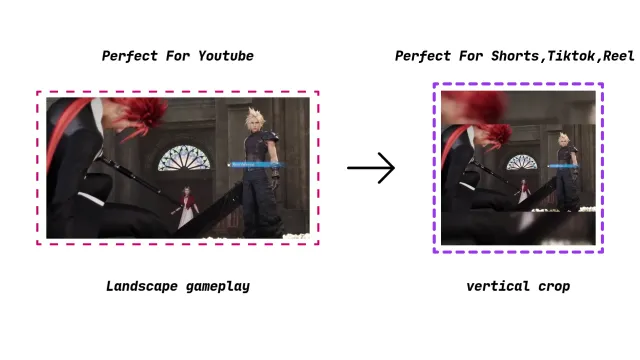
If the landscape video is already upright, do not rotate it just because you want a portrait export. What you actually need here is aspect ratio conversion, not orientation correction. That means choosing a vertical canvas, such as 9:16, and deciding how the wide footage should fit inside it.
There are three common approaches:
- Crop the sides: The vertical frame fills the screen, but the left and right edges are removed.
- Fit with bars: The full video remains visible, but horizontal black bars appear at the top and bottom.
- Use a background fill: The full video stays visible, and the empty space is filled with a blurred version of the video or a solid color.
For casual creators, background fill tends to produce the best-looking result with the least effort. It avoids harsh cropping while still producing a vertical video that feels intentional on a phone screen. The detailed guide on how to convert horizontal video to vertical without cropping important content walks through that workflow in more depth.
When To Convert Landscape To Portrait
Creators intentionally convert landscape footage to portrait when posting to:
- TikTok
- Instagram Reels
- YouTube Shorts
- Facebook Reels
- Mobile-first ad placements
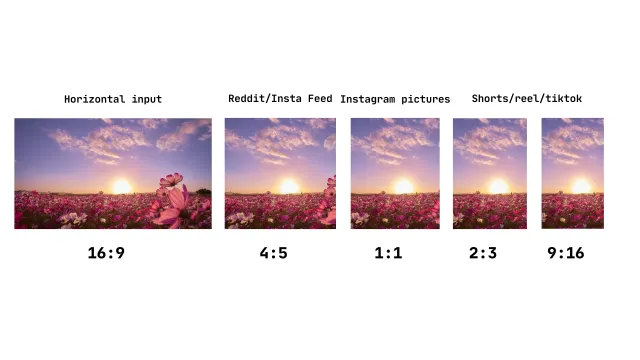
The safest default resolution for all three major short-form platforms is 1080x1920 at a 9:16 ratio. For Instagram feed posts, 4:5 at 1080x1350 also works well.
Common Mistakes When Fixing Video Orientation
Most orientation fixes go wrong because the user is trying to solve two separate problems at once without realizing it.
Stretching the Video
Stretching fills the frame but distorts the proportions. If people, products, or text look oddly wide or thin after an export, the video was probably stretched rather than rotated or reframed. Always use rotation, crop, or background fill instead.
Changing Aspect Ratio Instead of Orientation
Aspect ratio changes the canvas shape. Orientation rotates the video.
If the video is sideways, switching from 16:9 to 9:16 will not fix it. You need to physically rotate the video first. The aspect ratio change comes after.
Rotating Twice
This happens more often than you would expect. You rotate the video in one app, save it, then upload it to another app that also reads the old orientation metadata and rotates it again. The result ends up sideways or upside-down.
The fix is to export a new version where the rotation is baked directly into the video file. Once the pixels themselves are upright, the video displays correctly everywhere, regardless of whether the player reads metadata.
Cropping Without Checking the Edges
Cropping removes part of the frame. Before applying any crop, check the edges of the video. Gaming HUDs, subtitles, product labels, hand movements, and important on-screen details are often close to the original edges, and a careless crop removes them.
Exporting in the Wrong Dimensions
You might rotate the video correctly but export it with the wrong output size. A vertical video exported at 1920x1080 may still behave like a landscape file in certain apps. For vertical social video, the correct dimensions are typically 1080x1920.
How To Fix Video Orientation Using AspectShift-HtoV
AspectShift-HtoV is a Windows desktop app built specifically for this kind of practical formatting job. You do not need a full video editor, a timeline, layers, or keyframes. Import the video, use the built-in transform controls to rotate or flip it, choose the output format, preview the corrected version, and export.
The workflow below is based on the demo above, where a wrongly oriented Car.mp4 clip is imported, rotated correctly, exported as a 16:9 Twitter/X version, and opened afterward to confirm it plays in the correct landscape orientation.
Step 1: Import the Video
Open AspectShift-HtoV and add your video from the left sidebar using Files, Folder, or drag and drop.
Once imported, the filename appears in the input area and the main preview updates immediately. This is useful because a phone clip may look correct in your gallery app but wrong on your PC. The preview shows you what the exported result will look like before you create any file.
Step 2: Choose an Output Folder
In the left sidebar, use the Output Directory field and Browse button to pick a destination folder. You can also enable Subfolders per target if you are exporting several platform versions and want to keep them organized.
Step 3: Check the Preview
Look at the center preview to identify the exact problem:
- Sideways in one direction → needs a 90° or 270° rotation
- Upside-down → needs a 180° rotation
- Mirrored → needs Flip H or Flip V
- Upright but wrong shape for the platform → needs aspect ratio conversion, not rotation
Step 4: Apply the Transform
Scroll down the left sidebar to the Transform section. This is where you fix the orientation directly.
- Rotate 90° if the video is turned one way
- Rotate 270° if it is turned the opposite way
- Rotate 180° if it is upside-down
- Flip H or Flip V if the clip is mirrored
- Reset to remove the transform and start again
In the demo, Rotate 270° corrects the badly oriented car clip into the proper landscape direction. The preview updates as you apply each control, so you can check the result before exporting anything.
Step 5: Pick the Output Format
Once the video is facing the right way, choose an output target. AspectShift-HtoV gives you two options:
- Aspect Ratio Targets: 9:16, 1:1, 4:5, 2:3, or 16:9
- Platform Presets: YouTube, YouTube Shorts, Instagram Square, Instagram Reels, TikTok, Reddit, Twitter/X
| Goal | Good choice |
|---|---|
| Fix a sideways landscape video | 16:9 or a 16:9 platform preset |
| Prepare a corrected video for Shorts | YouTube Shorts or 9:16 |
| Prepare a corrected video for Reels | Instagram Reels or 9:16 |
| Prepare a corrected video for TikTok | TikTok or 9:16 |
| Make a square or feed version | 1:1, 4:5, Instagram Square, or Reddit |
| Export for Twitter/X | Twitter/X |
In the demo, the Twitter/X preset is selected, which produces a clean 16:9 landscape export.
Step 6: Check Guides and Safe Areas
The preview includes buttons for Guides and Safe Areas. These are particularly useful when preparing videos for platforms that place captions, buttons, usernames, or progress bars over the video. If you are rotating a clip and exporting it for YouTube Shorts, TikTok, or Instagram Reels, safe areas help you confirm that faces, text, and key action are not too close to the edges where the platform UI may cover them.
Step 7: Click Convert Now
When the preview looks right and the output target is selected, click Convert Now.
AspectShift-HtoV processes the file and shows progress in the right-side queue. For one video, this is a quick single-file conversion. For multiple clips that all have the same orientation problem, the same settings apply to the entire batch.
Step 8: Open the Corrected Export
After conversion, open the output folder and check the exported file.
In the demo, the corrected clip opens in VLC as a clean landscape video. The filename includes the target format — Car_16x9_twitter_x.mp4 — which makes it easy to identify which preset created it, especially when you are exporting several versions.
Tips for Better Results
Preview before converting. The preview is the fastest way to catch orientation mistakes before creating the final file.
Fix rotation before changing aspect ratio. Get the video upright first, then decide whether the output should be portrait, landscape, square, or 4:5.
Avoid stretching. If the frame does not naturally fill the target shape, use crop, fit, or background fill instead.
Keep important content away from the edges. Social platforms often place UI elements over the edges of the video.
Use platform presets when they are available. Presets reduce the chance of exporting a 9:16 video at the wrong resolution.
Use Skip if output exists when rerunning batches. In AspectShift-HtoV, this option prevents duplicate exports when you are processing a folder that already has some completed files.
Open the exported file once before uploading. A quick playback check catches the most common mistakes in a few seconds.
Frequently Asked Questions
Does rotating a video reduce quality?
Rotating by itself does not have to reduce quality, but re-encoding during export can. If the app compresses the file at a lower bitrate, the result may look softer. Use a good quality export setting and avoid exporting the same video multiple times through different tools in sequence.
Can I rotate a video without cropping?
Yes. A pure rotation turns the whole frame without removing anything. Cropping only becomes necessary if you are also forcing the rotated video into a different canvas shape — for example, rotating a landscape clip into a portrait canvas requires a decision about how to fill or remove the extra space.
What is the difference between rotating and changing aspect ratio?
Rotation turns the video. Aspect ratio changes the shape of the output frame.
Think of rotation as turning a photo in your hand. Think of aspect ratio as choosing the size and shape of the paper you want to print it on.
Why does my phone play the video correctly but my PC does not?
Your phone is reading the video’s orientation metadata correctly, while the PC app is ignoring it or interpreting it differently. The fix is to export a new version where the rotation is baked directly into the video file. Once the pixels themselves are upright, the video displays correctly everywhere regardless of how the player handles metadata.
Can I upload landscape videos to TikTok?
Yes, TikTok accepts landscape videos, but they appear smaller because the app is designed around vertical viewing. If you want the video to feel native to TikTok, convert it to 9:16. If the original frame contains important details near the sides, use a background fill instead of a hard center crop.
Should I use portrait or landscape for YouTube?
For long-form YouTube videos, landscape 16:9 is the standard. For YouTube Shorts, use vertical 9:16. If you are turning a normal YouTube video into a Short, use a vertical export with crop or background fill depending on how much of the original frame you need to preserve.
What is the best way to fix a sideways phone video?
Open the file in a video tool, rotate it 90 degrees until it is upright, preview the result, and export a new copy. If you also need versions for Shorts, TikTok, or Reels, use a tool that handles both orientation and aspect ratio in the same workflow so you are not fixing the same clip multiple times.
Can I fix multiple badly oriented videos at once?
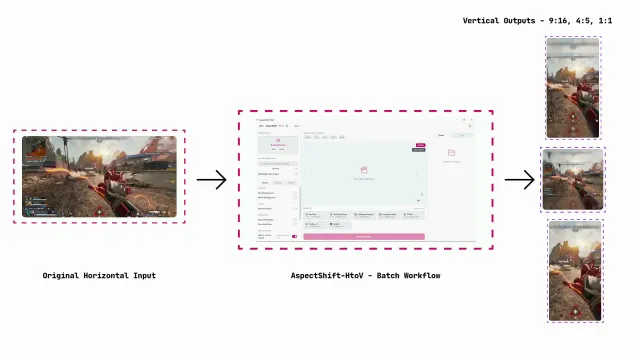
Yes, if the videos need the same correction. In AspectShift-HtoV, add multiple files or a folder, apply the transform and output target once, and process them as a batch.
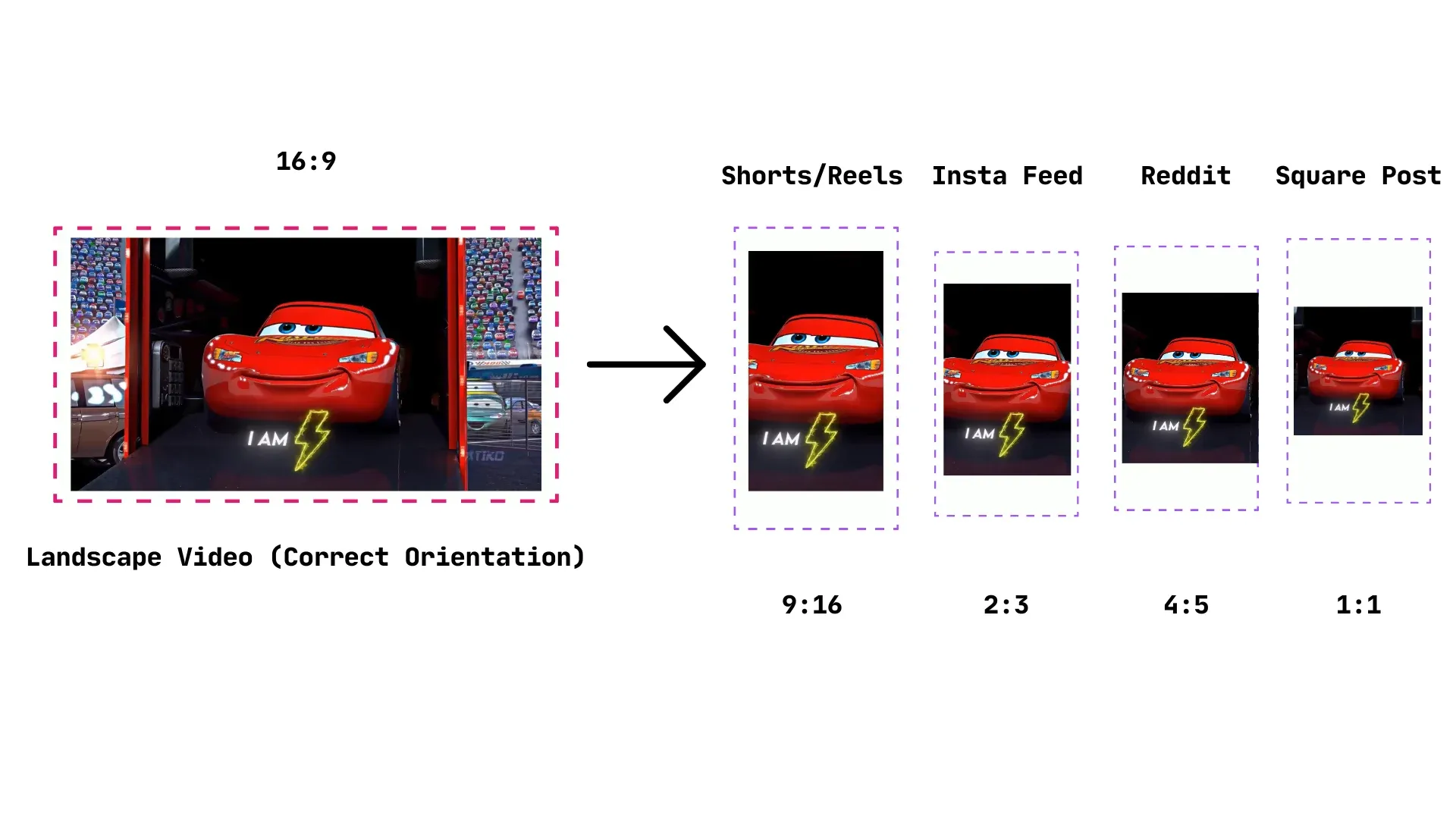
Corrected video shown across multiple social media export formats
Final Thoughts
Fixing video orientation is mostly about knowing which problem you are actually solving.
If the video is sideways, rotate it. If the video is upright but the shape is wrong for the platform, change the aspect ratio. If changing the aspect ratio would cut off important content, use a background fill instead of stretching or blindly cropping.
For beginners and casual creators, the best workflow is simple: make the video upright, choose the right output shape, preview the result, then export a clean new file.
AspectShift-HtoV puts all of that in one place. It is not trying to replace a professional editor. It is built for the practical stuff — fixing orientation, converting landscape footage to vertical formats, preparing platform-ready exports, and batch-processing clips without turning a five-minute job into an editing project. If you regularly work with phone videos, sideways clips, or horizontal footage that needs to become Shorts, TikToks, or Reels, it is a straightforward tool to keep in your workflow.